










37 Google Business Profile tips for home service businesses
37 specific Google Business Profile tips for plumbers, HVAC techs, electricians, roofers, cleaners and other trades, from setup to reviews and monthly upkeep.

Your Google Business Profile is often the first thing a homeowner sees when they search for help, and sometimes the only thing they look at before they call. These 37 tips cover what to set up, what to fix and what to keep doing, grouped from the foundations through to monthly upkeep. Work through them in order the first time, then keep the last two chapters as a routine. Google changes its features and rules from time to time, so check its current help pages when a tip depends on a specific setting.
Get the foundations right
Before you polish anything, make sure you own the right profile, that you can't be locked out of it and that it's verified.
1. Search before you create anything
Search Google Maps for your business name, your phone number and any old addresses. Google sometimes creates profiles from public information, and a previous owner, an old employee or a marketing company may have made one years ago. If a profile exists, claim it rather than creating a new one. If someone else controls it, Google has a process for requesting ownership. If you find duplicates, contact Google Business Profile support to merge or remove them, because duplicates split your reviews and confuse customers.
2. Make yourself the primary owner
The primary owner should be a Google account you control, ideally tied to a business email address you'll keep. If a web designer or agency set up your profile under their account, ask them to transfer primary ownership to you and stay on as a manager if they still help. Losing access to a profile with years of reviews on it is painful and slow to fix.
3. Add a backup owner and use manager roles
Add a second owner you trust, such as a business partner, so you're never locked out if one account has a problem. Give office staff, marketing help and anyone else who updates the profile manager access instead of sharing your password. When someone leaves the company, remove their access the same week.
4. Prepare properly for verification
Google decides which verification methods you're offered, and many businesses are now asked for a short video. If you get a video option, read the on-screen instructions first, then plan one continuous clip that shows where you are, your marked vehicle, equipment or signage, and something that shows you manage the business, such as opening up your shop or showing business paperwork. Record in daylight and keep the camera steady.
5. Hold off on big changes while verification is pending
Changing your business name, address or primary category while verification is in progress, or right after, can trigger another review. Get verified first, confirm everything looks right, then make any larger changes one at a time.
Name, address, phone and service area
These details decide whether Google trusts your profile and whether customers can reach you. They're also where most guideline problems start.
6. Use your real-world business name, exactly
Your profile name should match the name on your trucks, signs, invoices and website. Don't add services, town names or phrases like "24/7" unless they're genuinely part of your legal or trading name. Google's guidelines don't allow it, competitors can report it, and it can lead to your name being changed or your profile suspended.
7. Hide your address if customers don't come to you
Most trades go to the customer. If you work from home or from a yard customers don't visit, Google's guidelines say to remove the address from public view and set a service area instead. You still verify with your real address. It just isn't shown. Only show an address if customers can walk in during your listed hours.
8. List only the areas you really serve
Set your service area by the cities or ZIP codes you actually work in and want work from. Google's guidelines currently say a service area shouldn't extend farther than about two hours' drive from your base, and there's a limit on how many areas you can add. A realistic list helps customers know whether you'll come to them. It won't make you rank in every town on it, but it avoids calls you'd have to turn away.
9. Use a phone number that gets answered
List a local number that reaches a person during your listed hours, or at least a voicemail and a quick text back. A missed call from your profile is often a customer calling the next listing. If you use call tracking, Google's help pages explain how to list the tracking number as primary and your main number as an additional phone. Check the current guidance before you change it.
10. Keep your details identical everywhere
Your business name, phone number and website address should match exactly across your Google profile, your website, your invoices and your other listings, such as Apple Maps, Bing, Yelp and Facebook. If you've changed your number or moved, search for your old details and update them.
Categories and services
Categories tell Google what kind of business you are. Services tell customers exactly what you do. Both help Google match your profile to the right searches.
11. Choose your primary category for your core work
Your primary category should describe the work that makes up most of your business, not the work you'd like more of. Google's guidelines ask you to use as few categories as needed to describe your core business. If you're mainly a heating and cooling company that also does some plumbing, lead with the heating and cooling category.
12. Add additional categories only for regular work
If you do a meaningful amount of a related type of work, such as drain cleaning for a plumber or generator installs for an electrician, look for an additional category that fits. Don't add a category for work you do a few times a year. That's what the services list is for.
13. Check what the top local results use
Search your main service in your area and look at the category shown under the name of each business in the top map results. You're not copying anyone, but if the businesses that consistently show up use a category you hadn't considered, check whether it honestly fits your work. Type into the category field in your profile to see the names Google currently offers, rather than guessing.
14. Add every service you offer
Google suggests services based on your categories. Tick every one you actually do, then add custom services for anything missing. A plumber might add sump pump installation, water softener installation, gas line repair and sewer camera inspection as separate services. Each one is another clear signal of what you do.
15. Describe each service in the customer's words
Give each service a short description: what it includes, when someone needs it and anything that sets your approach apart. Use the words a homeowner would search, such as "furnace won't turn on", rather than trade jargon or model numbers. If you list prices, keep them current, because an outdated price leads to an awkward first phone call.
16. Update categories and services when your business changes
When you add a service line, such as EV charger installs, heat pumps or gutter guards, add it to your profile the same week. When you stop doing something, remove it. Avoid switching your primary category back and forth to test results. Make changes when your business changes.
Description, hours and links
These fields answer the questions customers have before they call: what do you do, when can you come and how do I book?
17. Write your description for a homeowner
You get up to 750 characters. Say what you do, where you work, who you help and what makes you different, in plain sentences. Put the most important information first. Keep links, special offers and long lists of keywords out of it, since Google's description guidelines restrict them. The post on writing your Google Business Profile description has examples by trade.
18. List the hours you actually answer
Set your regular hours to when someone picks up the phone and books work. If calls outside those hours go to voicemail, don't list yourself as open. Customers who call during your listed hours and get no answer often leave frustrated reviews.
19. Set holiday hours ahead of time
Add special hours for public holidays a few weeks in advance, including days you'll be closed. Otherwise Google may show you as open on a day nobody's answering, or warn customers that your hours might differ.
20. Be clear and honest about emergency service
If you truly answer emergency calls around the clock, your hours and description can say so. If emergency service is limited, such as existing customers only or until 10 p.m., say that clearly in your description and on your website rather than listing 24-hour hours. An emergency customer who reaches voicemail won't try twice.
21. Pick every attribute that's true
Attributes are short facts shown on your profile, such as offering onsite services or online estimates, or being veteran-led or women-owned. The options depend on your category and country. Go through the list, add every one that's accurate and skip any that aren't.
22. Add a booking or quote link that goes somewhere useful
If your profile offers an appointment or booking link, point it to a page where customers can request a time or a quote, not your homepage. Test it on your phone to make sure the form works and that someone receives the request.
23. Tag your website link so you can measure it
Add tracking parameters to the website link on your profile, such as ?utm_source=google&utm_medium=organic&utm_campaign=gbp, so your website analytics can show how many visits and form requests come from your Google profile. Ask whoever manages your website to confirm the analytics picks them up.
Photos and videos
Photos show customers that you're a real local business that does careful work. They're often the deciding factor between two profiles with similar reviews.
24. Upload a real logo and cover photo
Use your actual logo and a clear cover photo, such as a clean branded truck, your team on a job or a finished project you're proud of. Avoid photos with a lot of text on them.
25. Add new job photos every week
Make it part of the routine: every tech takes a before and an after photo on suitable jobs, and someone uploads the best few each week. Finished installs, tidy work areas and clear before-and-after pairs work well. A modern phone camera is fine. Shoot in good light and keep customers' faces, house numbers and personal belongings out of the frame unless they've agreed.
26. Show your team and your trucks
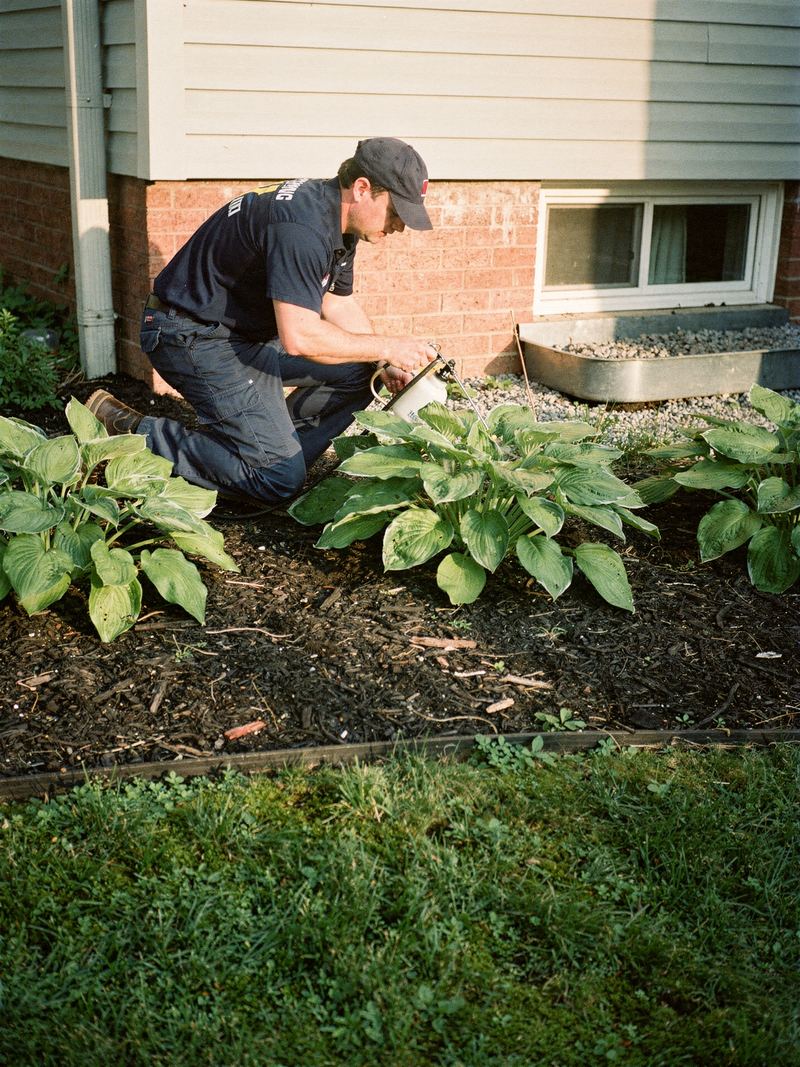
Customers are letting someone into their home. Photos of your team in uniform, your office staff and your marked vehicles help them recognize who's coming and trust that you're an established business.
27. Post short videos of real work
A 15 to 30 second clip can show what a paragraph can't: a tech walking through a finished install, a before-and-after pan of a cleaned carpet or a quick explanation of a common problem. Keep it steady, well lit and free of anything private.
28. Keep an eye on photos other people add
Customers and Google can add photos to your profile. Check them every month or so. If a photo isn't of your business, shows private information or breaks Google's content policies, report it. Never upload stock photos or other companies' work as your own.
Reviews
Google says review count and rating factor into local ranking, and customers read reviews to decide whom to trust. Honest, steady reviews from real customers are the goal.
29. Make your review link easy to use
Get the direct review link from your profile and put it everywhere a happy customer might see it: your job completion text, your invoice email and a leave-behind card with a QR code. The fewer taps between the customer and the review form, the better.
30. Ask every customer at the end of the job
The best time to ask is right after a job is finished, while the customer is pleased and the details are fresh. Have the tech ask in person, then send the link by text the same day. Asking consistently, after every job, matters more than any clever wording. The post on asking for honest reviews has scripts you can adapt.
31. Never gate, buy or swap reviews
Ask every customer the same way. Don't send happy customers to Google and unhappy ones to a private form. Don't offer discounts, gifts or entries into a prize draw for reviews, don't trade reviews with other businesses and don't let staff or family review your business. All of these break Google's policies, and in the US the Federal Trade Commission has rules against fake reviews and review suppression. If you're unsure about a review program, check with a lawyer first.
32. Reply to every review within a few days
Thank positive reviewers by first name and mention the job where you can, such as "Glad we could get your water heater replaced before the weekend." Replies show future customers that a real person runs the business. Vary your wording so replies don't read like a template.
33. Answer negative reviews with facts and calm
Reply publicly in a few calm sentences. Thank them for the feedback, acknowledge the concern, state any facts without arguing, never share private details and invite them to call you directly. Then actually call. Future customers read your reply as much as the review, and a fair, professional answer can reassure them.
34. Report reviews that break the rules, and only those
If a review is spam, about a different business, off-topic, offensive or from someone with a conflict of interest, report it through your profile. A fair negative review from a real customer won't be removed because you disagree with it. Put that energy into your reply and into fixing whatever went wrong.
Updates and monthly upkeep
A profile isn't a one-time job. A few minutes each week and a short check each month keep it accurate and active.
35. Post an update every week or two
Use profile updates to share real things: a job you just finished, a seasonal reminder ("time to book your AC tune-up before the first heat wave"), a limited offer with clear dates and terms, or news like a new service or a new tech. Add a photo from the job and a clear way to call or book. Google doesn't say updates directly improve rankings, but they keep your profile current and give customers a reason to choose you.
36. Check for edits you didn't make
Google can update profile details based on suggestions from the public or from other information it finds, such as a changed phone number, different hours or a new category. Log in at least once a month, look for notices about updates, and correct anything that's wrong. It's also a good moment to confirm your hours, services and photos are still accurate.
37. Read your performance numbers every month
Your profile's performance section shows how people found you and what they did: searches that showed your profile, calls, website clicks, direction requests and booking clicks where available. Compare each month with the one before and the same month last year, rather than reacting to day-to-day swings. Note the search terms people used, and add services or website pages for anything important you're missing.
A 15-minute monthly routine
Once the profile is set up, most of the work is a short monthly check. Put it in your calendar for the same day each month.
For a printable version of the setup steps, use the Google Business Profile checklist, and for the bigger picture of how map rankings work, read how to rank higher on Google Maps. If you'd like an outside check, Zome's free AI report looks at your Google profile's rating, review count, hours, photos and website link alongside your website, and shows which local businesses currently rank above you.
More guides
All resources Prompt library100 AI prompts for home service businessesCopy a prompt, fill in the brackets with your own details and get a useful first draft in seconds. 100 prompts grouped by the jobs owners actually do every week.
 GuideBusiness plan template for home service companiesTen sections, each with what to write, a checklist and example wording you can adapt. Built for trades owners who want a plan they'll actually use.
 GuideHow to rank higher on Google Maps: the field guideWhat actually moves your business up the map for plumbers, HVAC techs, roofers, cleaners and other home service companies, and the shortcuts that get profiles suspended.
The easiest way to grow your service business online.
Get your free AI report in about a minute, then see exactly what Zome would fix first.