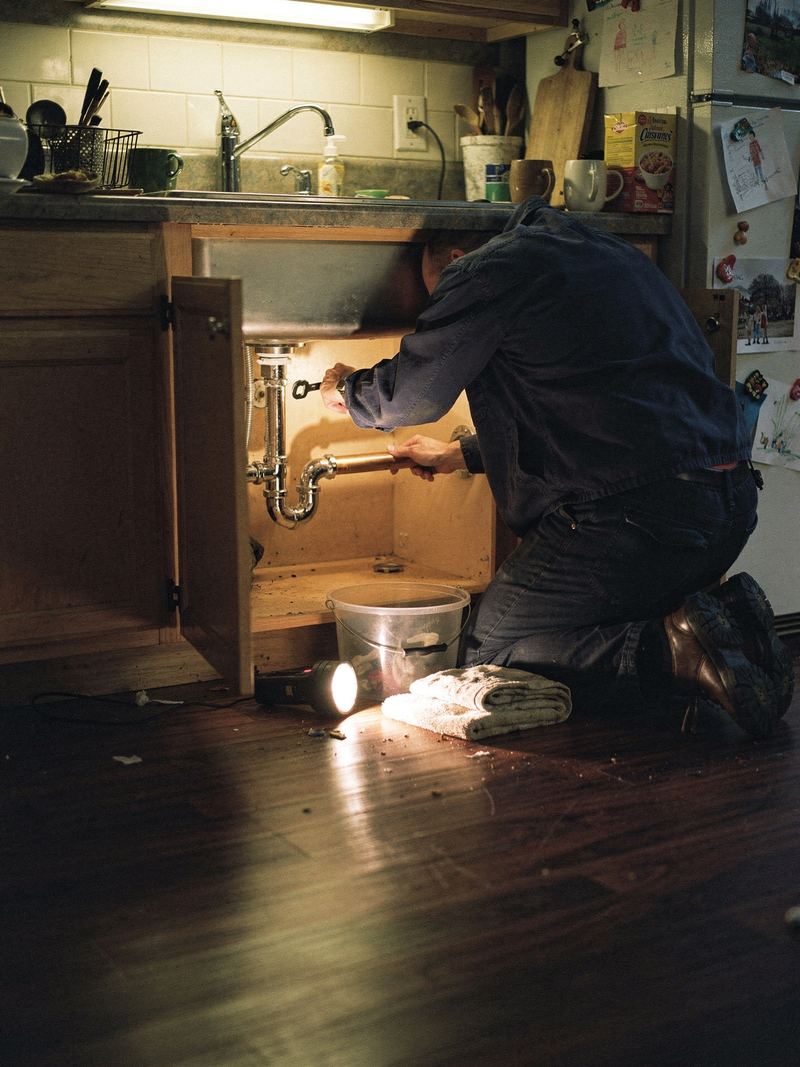
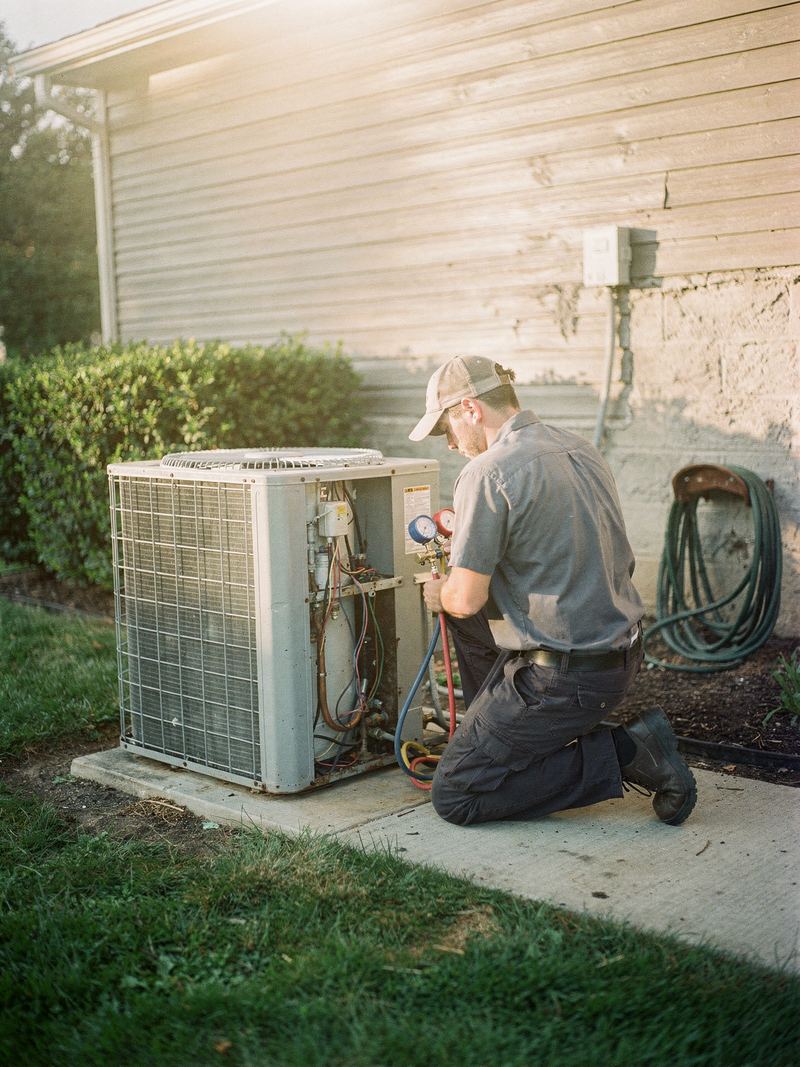
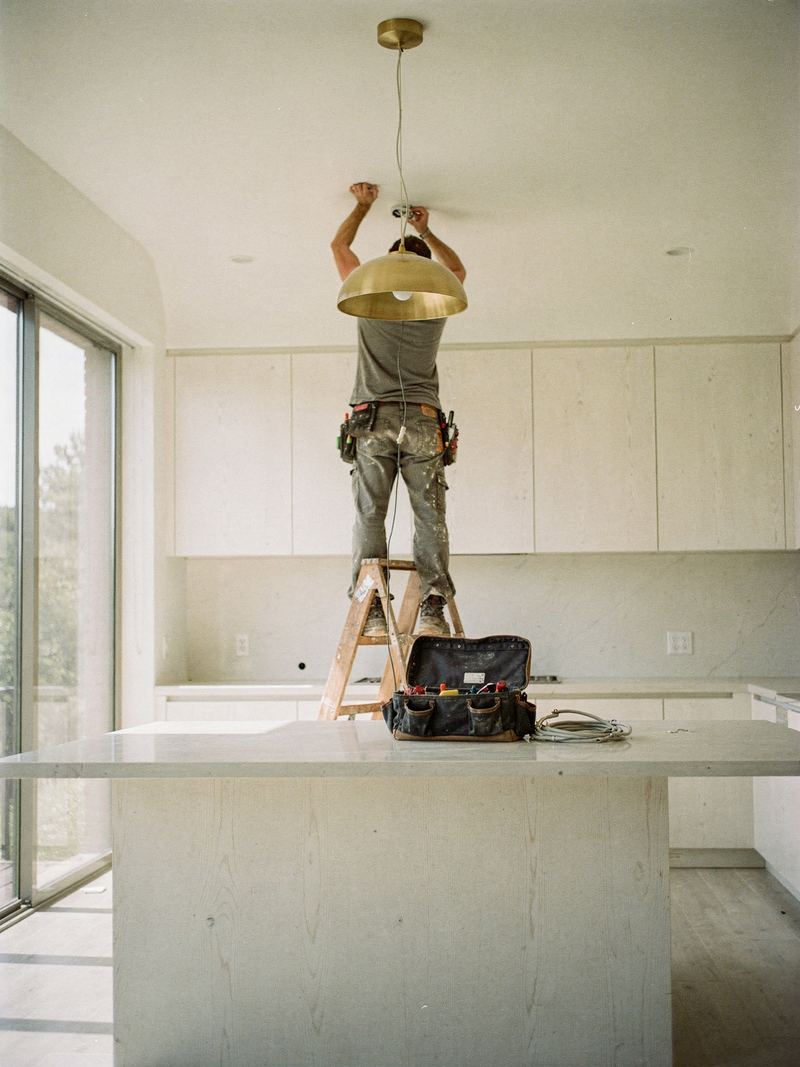
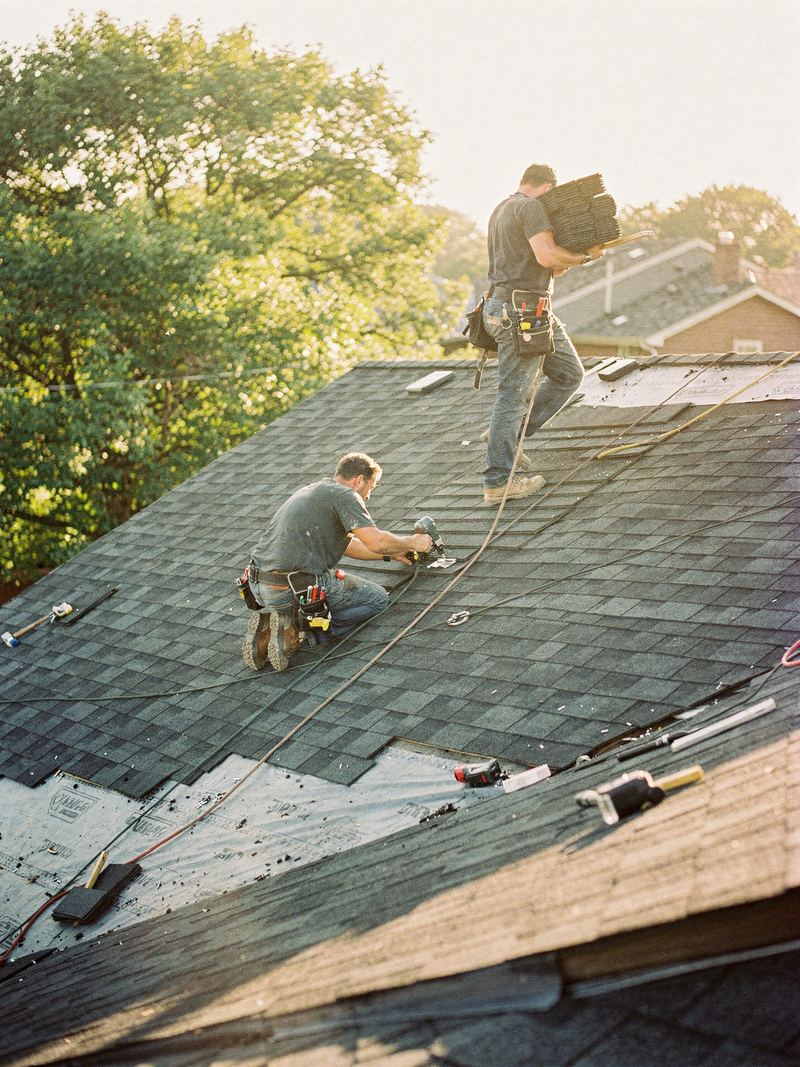
Your booking page lets customers pick a service, describe the job, and choose a day and a time window. It's a request, not a confirmed booking. The page tells customers you'll confirm the exact time with them.
Set your time windows
- Go to Website. On the Design and content tab, find Booking.
- In Time windows, type your windows separated by commas, like 8–11am, 11am–2pm, 2–5pm.
- Press Save.
The days follow your opening hours in Settings. Customers can pick from your next 14 open days, starting tomorrow. Days you're closed are skipped. See Business details, opening hours and notifications.
Limit visits per window
In Visits you can take in each window, enter a number from 1 to 20 and press Save. Leave it empty for no limit.
When a window has that many visits, your booking page marks it Full and stops offering it. Zome counts:
- jobs already scheduled in that window
- new requests for it from the last two days
- requests for it you've marked Contacted or Quoted in the last 30 days
If every window is full for the next two weeks, the booking page says so. Customers can still send a request, or call.
Emergencies
To take emergency requests, go to Settings, tick We take emergency calls under Trust details, and press Save settings. Then:
- The booking form offers It's an emergency under How soon do you need us?
- The booking page tells people to call you for an emergency, if your phone number is in Settings.
- Emergency requests can always be sent, even when a window is full.
- They show an Emergency badge in Inbox.
- Your website's Emergency help section shows. It stays hidden until you turn emergency calls on.
In the Problem picker section, problems you mark Urgent are flagged as emergencies once emergency calls are on.