

Go to Website and press Edit website (or Open the editor). The editor shows your real website. Your changes save on their own as a draft. Visitors keep seeing the published version until you publish.
Change text
Click any text on your website and type. For more settings, choose a section in the Sections tab. For example, Hero has fields for the headline, introduction, button and photo, and a Booking card switch that lets visitors pick a service at the top of the page.
Change photos
- Click a photo on your site, then pick one in Choose a photo, or press Upload a photo.
- The Photos tab holds Your photos and Zome photos. Press Upload photos to add more.
- In a Photo gallery section, use Upload photos or From your library. A gallery stays hidden from visitors until it has photos.
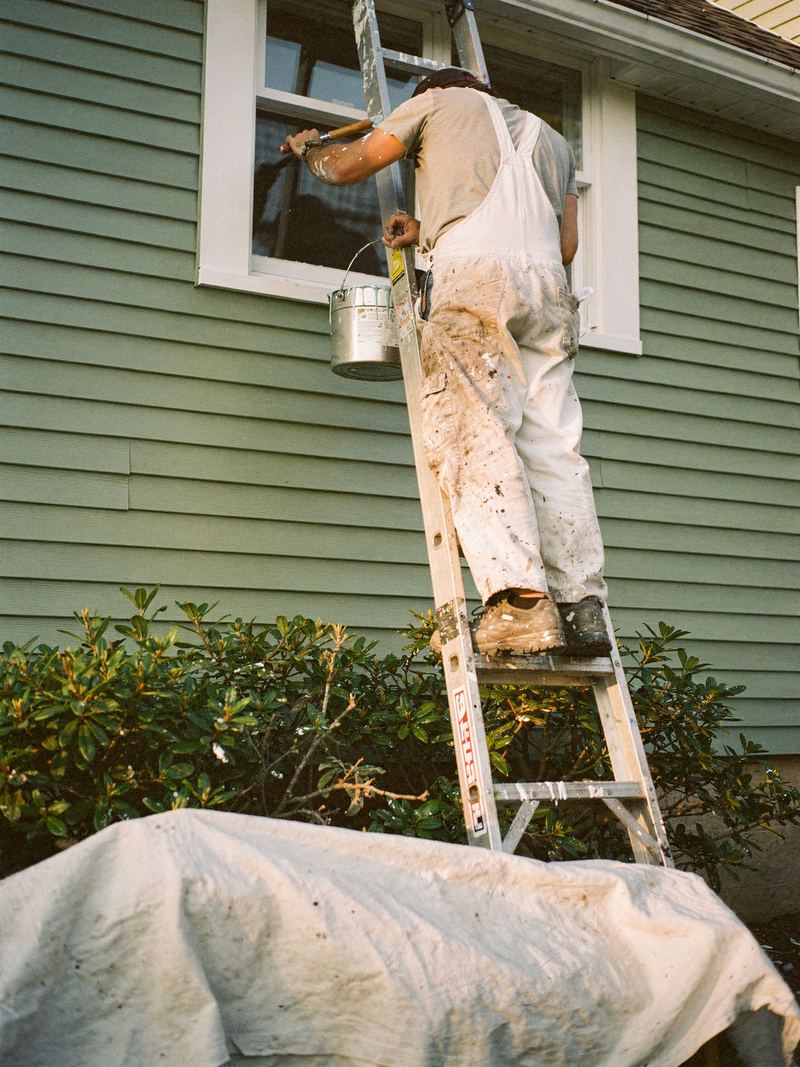
Real photos of your work and team build the most trust. Zome photos are illustrative. A photo that's on your website can't be deleted until you swap it out.
Add, move, hide and remove sections
- Drag sections in the Sections list to reorder them.
- Press the eye icon to hide or show a section.
- Press Add a section to add one, like Price guide, Questions or Service area.
- Inside a section you'll find Reset text, Remove and, for photo galleries and calls to action, Duplicate. The hero can't be removed.
Some sections fill themselves from other pages, like Services, Price guide, Service area, Maintenance plans and Trust details. The editor shows a link to the page where you change them.
Pick a design
In the Design tab, under Style, choose Datum, Grove, Pristine, Anvil or Classic. Your words, photos and sections stay the same. Only the look changes.
Upload your logo under Logo. With Classic, you can also pick a Brand color, Fonts, Corners and the layout for Top of the page. The other styles set their own colors and fonts.
Preview, undo and publish
- Desktop and Mobile switch the preview size. On a phone, switch between Page and Design.
- Undo and Redo are at the top.
- Preview opens your draft in a new tab.
- Publish website (or Publish changes) puts it live. Discard changes goes back to the live version.