



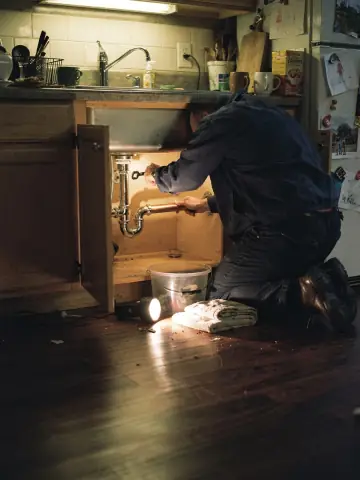

A photo of the job on the estimate shows the customer you looked closely at what they need. Add up to six.
Add them
- Open the request in Inbox and press New estimate (or Edit on a draft).
- Find Photos of the job below the lines.
- Tap photos from Photos on this request to include them. These are the photos the customer sent when they booked.
- To add more, upload from your phone or computer. If the request has none, you'll see "This request has no photos yet. Add some from your phone or computer."
- Add a Caption under a photo if it helps, like "Leak under the sink".
- Press Save draft or Save and send.
The count shows "(n) of 6 on the estimate". At six it says that is the most.
Who sees them
The customer sees the photos on the estimate page and in the email. Only people with their estimate link can see them. They never appear on your website.
After the customer answers
Once a customer accepts or declines, prices and notes can't change, but you can still change which photos they see. Open the estimate and press Edit photos, then Save photos.