









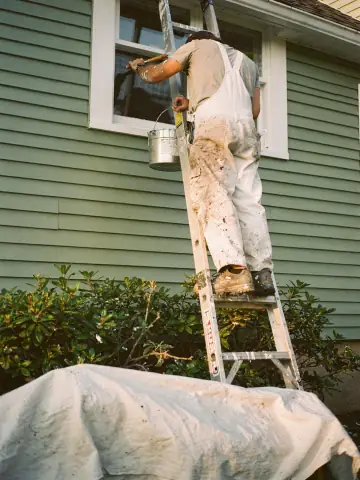


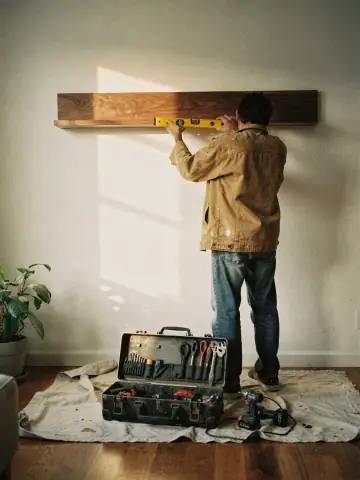
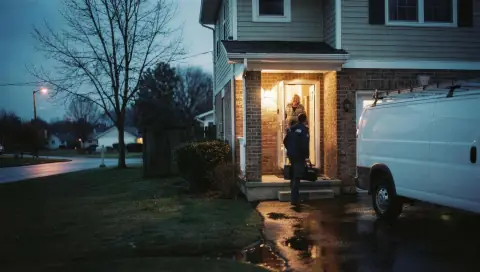

Real photos of your work and team build more trust than anything else on a website. The launch checklist on Home asks for three.
Upload photos
- Go to Website and press Edit website.
- Open the Photos tab and press Upload photos.
- Pick photos from your computer or phone. Each photo can be up to 4 MB.
- Your uploads appear under Your photos. Zome photos are a library of illustrative pictures you can use until you have your own.
Describe each photo
Under each photo, Photo description (the box that says "Describe this photo") is read aloud by screen readers and read by Google. Write what is in the picture, in a few words: "Curved flagstone walkway between two garden beds".
Put photos on your website
- Swap a photo: click it on your site and choose another in Choose a photo, or press Upload a photo.
- Photo gallery section: select it in Sections, then use Upload photos or From your library. Add a caption of up to 80 letters if you like. A gallery stays hidden from visitors until it has photos.
- Photo for each service: under Services, press Choose or Change. A service with no photo of yours shows a Zome library photo.
Delete a photo
Press Delete photo on it and confirm. A photo that is on your website can't be deleted: you see "This photo is on your website. Swap it for another first." Swap it out, publish, then delete it. A photo used on one of your jobs stays too.
Never upload a photo that shows a customer's house number or face without their say-so.