











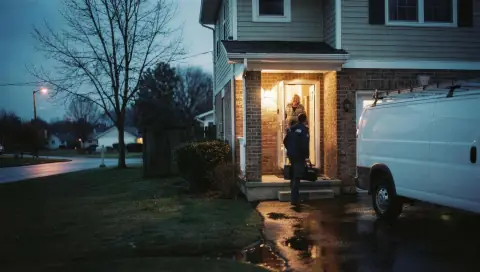

The on-my-way text tells the customer you're heading over, so they're ready.
Send it
- In Jobs, find today's job on the Scheduled tab.
- Choose how long under Arriving in, from the minutes shown.
- Press On my way.
You'll see "On-my-way text sent". The job shows an On the way badge, and the customer's own page shows "On the way, arriving around (time)".
The button only appears when the customer has a phone number and the job is today or past.
If texting isn't connected yet
The text is not sent. You'll see "On-my-way text ready in Follow-ups", and it waits in Follow-ups under Ready to send, with one tap to send it from your own phone. Once texting is connected, it goes out by itself. See Your Zome number and missed-call text back.
Good to know
- If the customer texted STOP, texts to them are off. See When a customer texts STOP or HELP.
- You can turn related automatic texts on or off in Follow-ups under Automations.